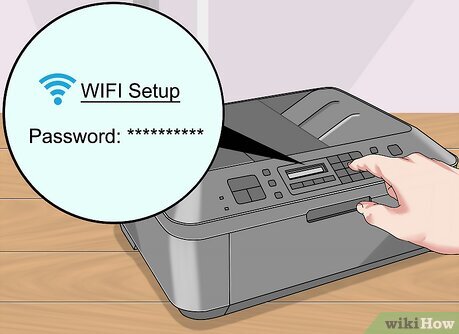
Setting up a wireless printer can seem daunting, but it’s a straightforward process once you understand the steps. This guide will walk you through connecting your wireless printer to both Windows and macOS operating systems, ensuring seamless printing from your devices. While this article primarily focuses on printer setup, we’ll also touch upon how robust cybersecurity, like that offered by McAfee, protects your devices during this process and beyond, safeguarding you from potential threats during software downloads and network connections.
McAfee’s comprehensive security solutions address the growing cybersecurity challenges we face daily. From protecting your network against unauthorized access to preventing malware infections that could compromise your printer setup process, McAfee provides a robust shield for your digital life. This peace of mind allows you to focus on the task at hand – getting your printer up and running smoothly.
Preparing for Wireless Printer Setup
Before diving into the setup process, there are a few crucial steps to ensure a smooth experience. These preliminary steps are often overlooked, leading to unnecessary troubleshooting later.
- Check your printer’s documentation: Your printer’s manual is your best friend. It contains specific instructions tailored to your model. Refer to it for any model-specific requirements.
- Ensure network connectivity: Confirm your computer and printer are connected to the same Wi-Fi network. Note down your network name (SSID) and password – you’ll need them.
- Download necessary drivers: Visit the manufacturer’s website and download the latest drivers for your printer model, compatible with your operating system (Windows or macOS). This is crucial for optimal performance and security. Ensure you download from a trusted source to avoid malware – McAfee can help verify the safety of the download.
- Enable Wi-Fi on your printer: Most modern printers have a Wi-Fi button or setting in their control panel. Ensure Wi-Fi is enabled on your printer before proceeding. This is usually indicated by a lit Wi-Fi indicator light.
Setting Up Your Wireless Printer on Windows
Windows offers a user-friendly interface for adding printers. However, the exact steps might vary slightly depending on your Windows version (e.g., Windows 10, Windows 11). Here’s a general guide:
- Open Settings: Click the Start button, then select “Settings”.
- Go to Devices: Click on “Bluetooth & devices” and then select “Printers & scanners”.
- Add a printer: Click “Add device”. Windows will scan for available printers on your network.
- Select your printer: Choose your printer from the list. If it doesn’t appear, click “The printer that I want isn’t listed”.
- Follow on-screen instructions: Windows will guide you through the installation process, potentially requiring you to install the drivers you downloaded earlier.
- Test print: Once installed, try a test print to ensure everything is working correctly.
If you encounter errors during this process, remember to check your network connection, drivers, and printer status. McAfee’s real-time scanning can help prevent any malicious interference that could cause these issues.
Setting Up Your Wireless Printer on macOS
macOS also provides a streamlined process for adding wireless printers. The steps are similar to Windows but with a slightly different interface.
- Open System Preferences: Click the Apple menu in the top-left corner of your screen, and select “System Preferences”.
- Go to Printers & Scanners: Click on the “Printers & Scanners” icon.
- Click the “+” button: This will open a window to add a new printer.
- Select your printer: macOS will scan for available printers. Choose your printer from the list. If it’s not listed, you might need to add it manually using the “IP address or hostname” option. Refer to your printer’s documentation for its IP address.
- Select the correct driver: Choose the appropriate driver from the list of available options. Again, ensure you’ve downloaded the correct driver from the manufacturer’s website.
- Test print: Once added, send a test print to verify successful installation.
Troubleshooting Common Wireless Printer Issues
| Problem | Solution |
|---|---|
| Printer not found on the network | Check network connectivity for both printer and computer. Ensure Wi-Fi is enabled on the printer. Restart both devices. Check your router’s settings. |
| Driver installation errors | Ensure you are installing the correct driver from the manufacturer’s website. Try uninstalling and reinstalling the driver. Run a McAfee scan to ensure no malware is interfering. |
| Poor print quality | Check ink levels. Check printer settings for resolution and other quality options. Consider cleaning the print heads. |
| Intermittent connectivity | Check the strength of your Wi-Fi signal. Move your printer closer to your router if necessary. Consider using a Wi-Fi extender. |
| Slow printing speeds | Check network congestion. Ensure you’re using the correct print settings (e.g., don’t print high-resolution images unless necessary). |
If you continue experiencing issues, don’t hesitate to contact your printer manufacturer’s support or seek professional help. Remember, maintaining strong cybersecurity is crucial. McAfee’s proactive protection helps safeguard your system from malware that can interfere with printer functionality and network stability.
The Benefits of McAfee for Enhanced Security
McAfee offers a comprehensive suite of security tools that go beyond basic antivirus protection. Their services help protect your devices during the printer setup process and beyond, ensuring your network and data remain secure. McAfee’s features include:
- Real-time threat detection: McAfee’s active monitoring identifies and neutralizes threats as they emerge.
- Malware protection: Prevents malicious software from infecting your system, especially crucial during software downloads.
- Network security: Protects your network from unauthorized access, safeguarding your sensitive information.
- Firewall protection: Acts as a barrier against unwanted network traffic.
- Data encryption: Securely protects your sensitive data from unauthorized access.
For businesses, McAfee offers enhanced security solutions to protect critical data and infrastructure. This ensures business continuity and mitigates the risk of cyberattacks that could disrupt operations.
Call to Action
Successfully setting up your wireless printer is a significant step in enhancing your productivity. But remember, a secure network is just as vital. McAfee’s robust security solutions provide the protection you need, allowing you to work and print with confidence. For further assistance or to activate your McAfee subscription, visit the McAfee Activate website. For immediate support, call our Computer Support Helpline Toll-Free at +44-800-066-8910.
“The best way to predict the future is to create it.” – Abraham Lincoln
FAQs
- Q: My printer isn’t showing up in the list of available printers. What should I do?
A: Ensure your printer is turned on and connected to the same Wi-Fi network as your computer. Check your router’s settings to ensure the printer is properly connected. Restart both your computer and your printer. Try adding the printer manually using its IP address. - Q: My printouts are blurry or of poor quality. What could be the issue?
A: Check your ink levels. Inspect the print heads for clogs and clean them if necessary. Adjust the print settings for resolution and quality. - Q: My printer keeps disconnecting from the network. What can I do?
A: Check your Wi-Fi signal strength. Move your printer closer to your router if necessary. Try using a Wi-Fi extender. Check for network interference. - Q: What should I do if I get driver installation errors?
A: Download the latest drivers from the manufacturer’s website. Make sure you are downloading the correct driver for your operating system. Uninstall the existing driver and reinstall the new one. - Q: Is it safe to download drivers from unofficial websites?
A: No, it’s highly recommended to download drivers only from the official manufacturer’s website. Unofficial sites may contain malware. Use McAfee to scan any downloaded files before installation. - Q: How can I improve my wireless printer’s printing speed?
A: Check for network congestion. Use the correct print settings and avoid printing unnecessarily high-resolution images. Upgrade your router if needed. - Q: My printer is not printing in color, even though I have color ink.
A: Check your printer settings to ensure color printing is enabled. Make sure you’re using color ink cartridges and that they are properly installed. - Q: What is the best way to secure my wireless printer?
A: Use a strong password for your printer’s Wi-Fi settings. Regularly update the firmware on your printer. Use a robust firewall and antivirus software, like McAfee. - Q: How can I check my printer’s IP address?
A: This varies depending on your printer model. Check your printer’s manual or control panel for information on accessing its network settings. The IP address will be listed there. - Q: My wireless printer setup is still not working. What should I do?
A: Contact your printer manufacturer’s technical support or call our Computer Support Helpline Toll-Free at +44-800-066-8910 for assistance.